
 By
By 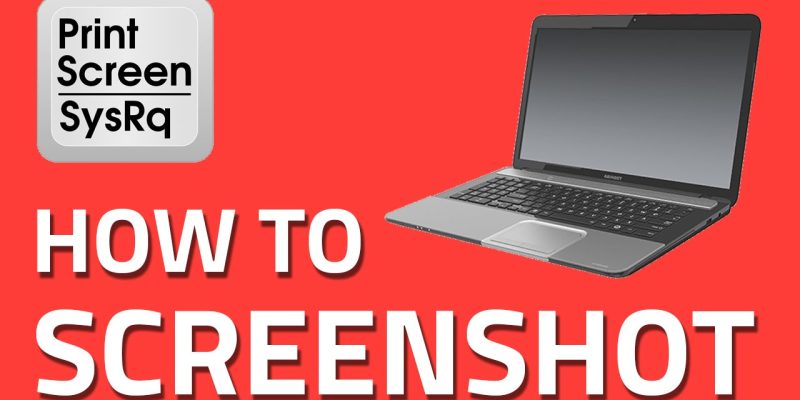
WINDOWS: Take a Quick Screenshot with Print Screen (PrtScn) on Your Laptop
The Print Screen button on your keyboard can
- take a screenshot and save it as a file
- take a screenshot without saving it as a file
- or take a screenshot of only one window (instead of the whole screen).
It may be labelled as “PrtScn,” “PrntScrn,” “Print Scr,” or something similar and may be found between F12 and Scroll Lock on most laptops.
Start off your week with tech news recap and trending conversations in your inbox

To take a screenshot of the entire screen:
- Press the PrtScn button to copy the screen to the clipboard
- Simultaneously press the Windows+PrtScn buttons on your keyboard to save the screen to a file
On laptop keyboards, you may have to press the “Function” or “Fn” key to access the Print Screen feature. When you press the key, it will look like nothing happened, but the screenshot has been saved to your clipboard.
For a Portion of Screen
Press “Windows + Shift + S”. Your screen will appear greyed out and your mouse cursor will change. Click and drag on your screen to select the part of your screen you want to capture. You can paste the screenshot in any application by selecting Edit > Paste or pressing Ctrl + V.
This only works in Windows 10’s Creators Update.
WINDOWS: SNIPPING TOOL
The Snipping Tool has been a part of the Windows for a long time. This tool was first included in Windows Vista and never got any new features apart from a few bug fixes. Snipping tool can take screenshots of an open window, rectangular area, a free-form area, or the entire screen. You can annotate your snips with different coloured pens or a highlighter, save it as an image or MHTML file, or email it to a friend.
In Windows 10, Snipping Tool has a new “Delay” option, which will allow you to capture screenshots of pop-up menus and tooltips. Open the Snipping Tool app and click Delay. From the drop-down list, click on the number of seconds you’d like to wait until your screenshot is taken.
Screenshots On Mac
If you’ve upgraded to macOS Mojave or later, you can use the Screenshot app to take all types of screenshots, or make video recordings of your screen. You can open Screenshot by pressing Shift-Command (⌘)-5 or use Spotlight to find and open the app.
Entire Screen:
- Press Shift-Command-3 to capture the screen of every display.
- Find the screenshot on your desktop.
Save a Window:
- Press Shift-Command-4.
- Press the Space bar. The pointer changes to a camera
- Click a window to capture that window.
To exclude the window’s shadow from the screenshot, press and hold the Option key while you click. - Find the screenshot on your desktop.
Portion Of The Screen:
- Press Shift-Command-4.
- Drag to select the area of the screen to capture. To move the entire selection, press and hold Space bar while dragging.
- After you release your mouse or trackpad button, find the screenshot on your desktop.




용인출장마사지에서는 타이마사지, 아로마 마사지, 스웨디시 마사지, 스포츠 마사지 등 다양한 코스를 제공합니다. 전신 관리부터 부위별 집중 케어까지 선택 가능하며
Glad to be one of several visitors on this awful internet site : D.